
Pulse puts Leetify form, Faceit ELO, Premier peak and the in-game CS2 rank on every Steam profile you open. There is no account and no setup, so the installation below is genuinely the whole job. The place it does the most good is the Steam client itself: its built-in browser is Chromium underneath and runs Chrome extensions happily, it just hides the address bar.
Install inside the Steam client
Installed in the client, the panel shows on profiles you open in the client and even in the Steam overlay in CS2. The client's profile view has no address bar, so the trick is to get one: any page opened in a tab has it. The one-minute video walks through every step, the screenshots below cover the details.
1. Open a profile and right-click any link
In the Steam client, open any Steam profile, your own works fine. Right-click any link on the page, for example Inventory in the right column, and pick Open Link in New Tab.
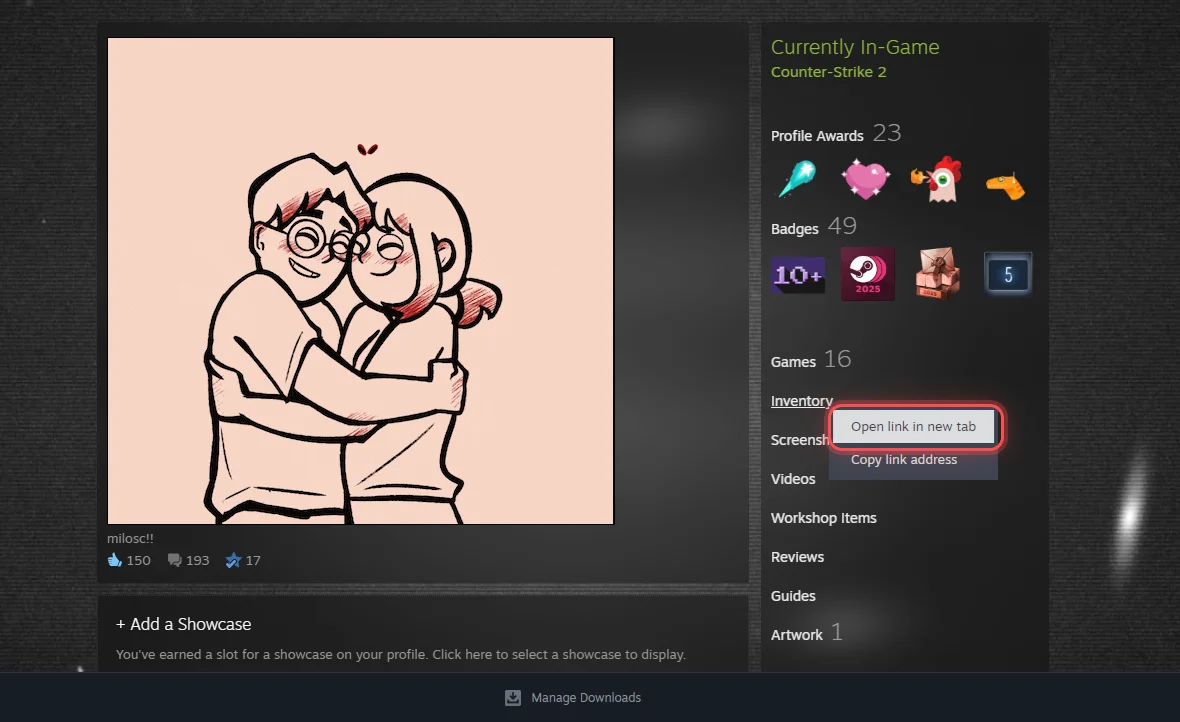
2. Replace the address with cspulse.pl
The new tab has an address bar. Click it, select the old address, type cspulse.pl and press Enter.
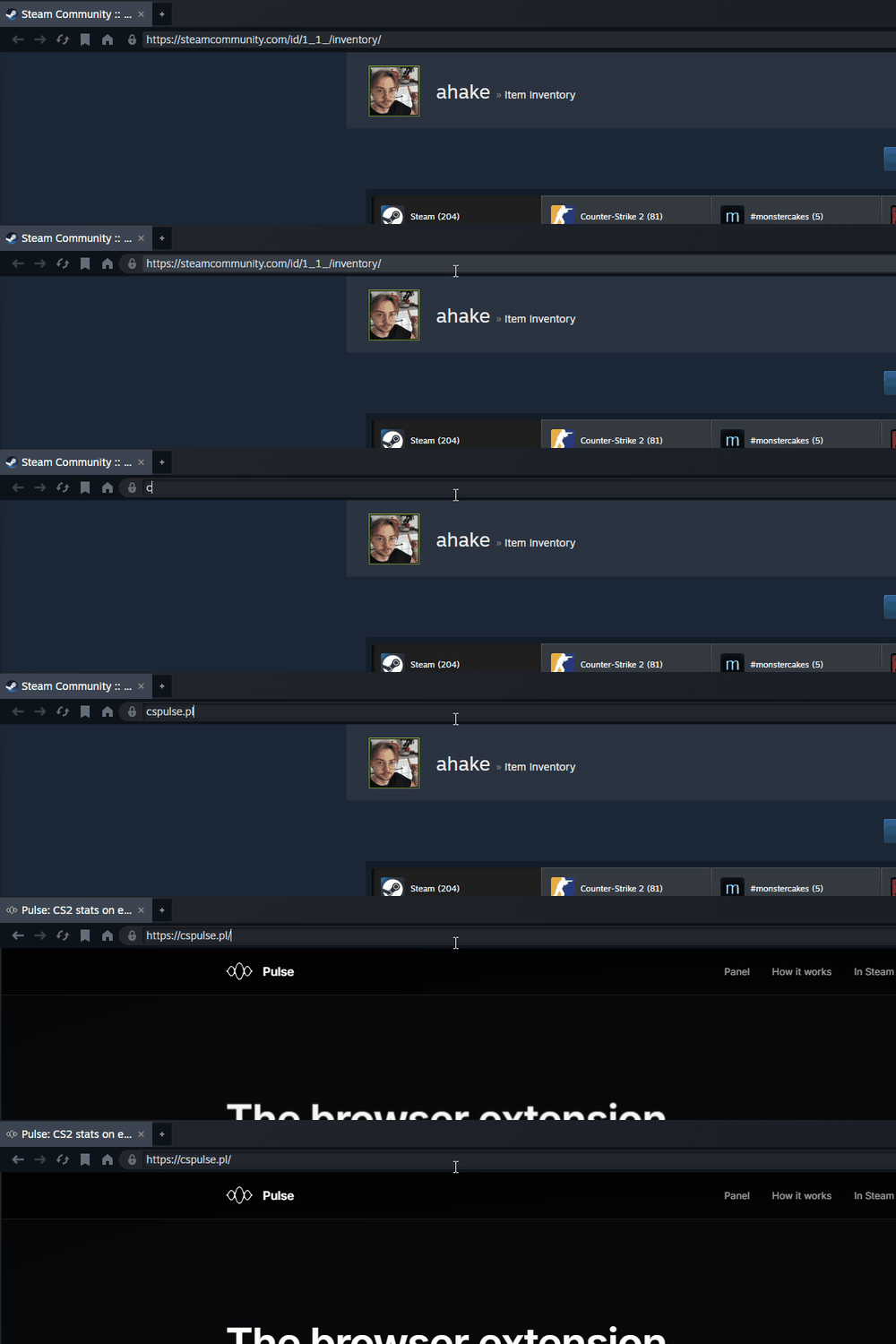
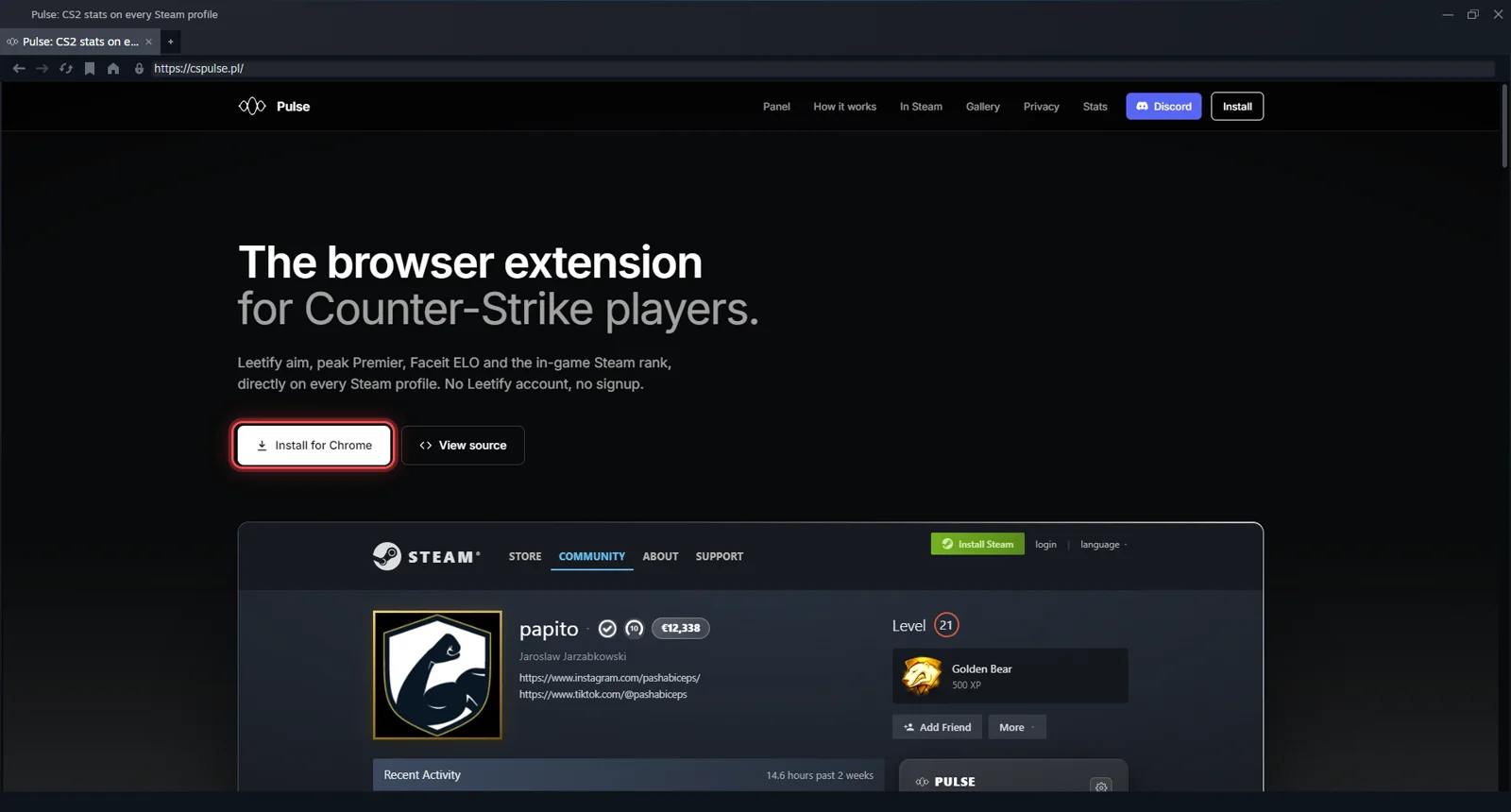
3. Click Install for Chrome
The Pulse site opens inside Steam. Click Install for Chrome; the store page opens in a new Steam window.
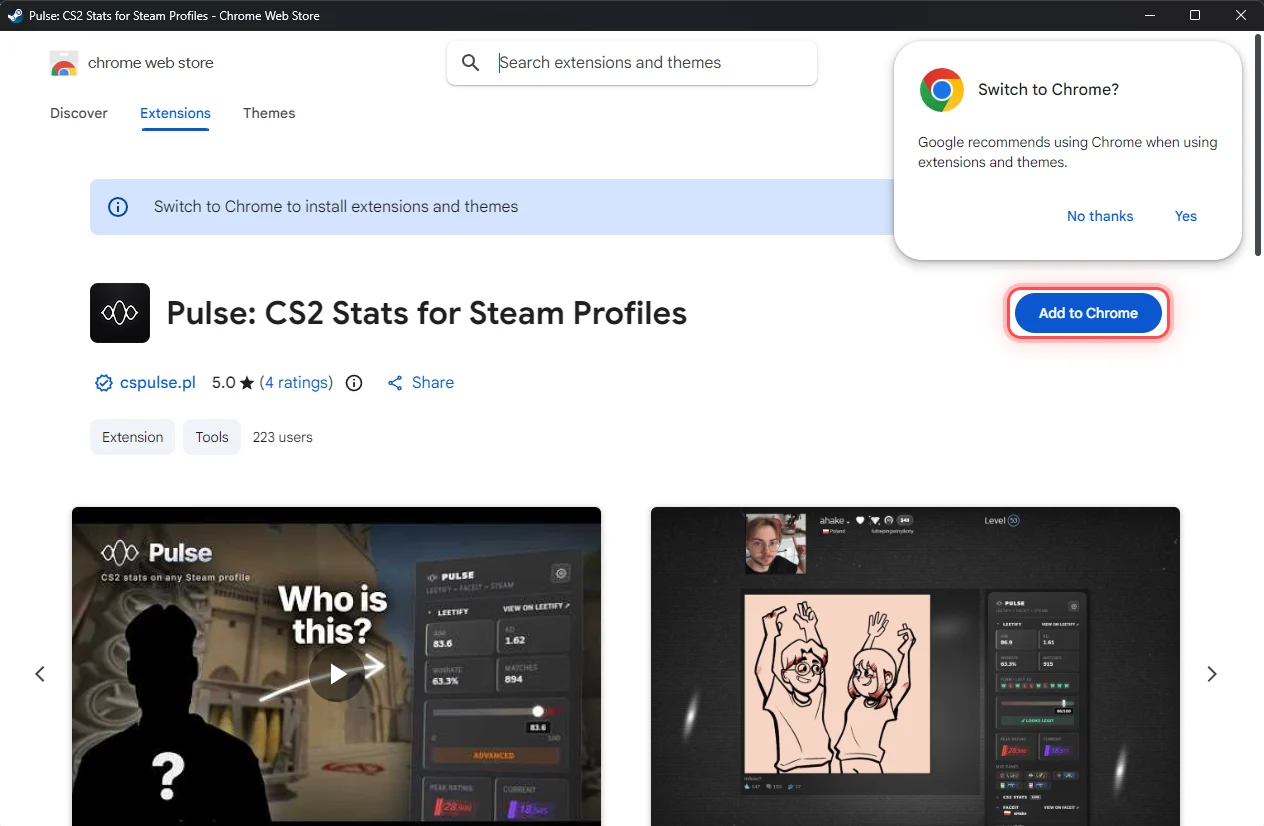
4. Ignore the notices, click Add to Chrome
The store does not recognise Steam's browser, so it shows a switch-to-Chrome banner and popup. Both are safe to ignore. Click Add to Chrome, then Add extension.
5. Close the windows and refresh the profile
Close the store window and the tab, go back to the Steam profile and refresh it. That is all, nothing to pin and nothing to configure. The panel is now part of the client, and because the CS2 overlay uses the same browser, checking a suspicious teammate mid-match is Shift+Tab, open their profile, read the numbers.
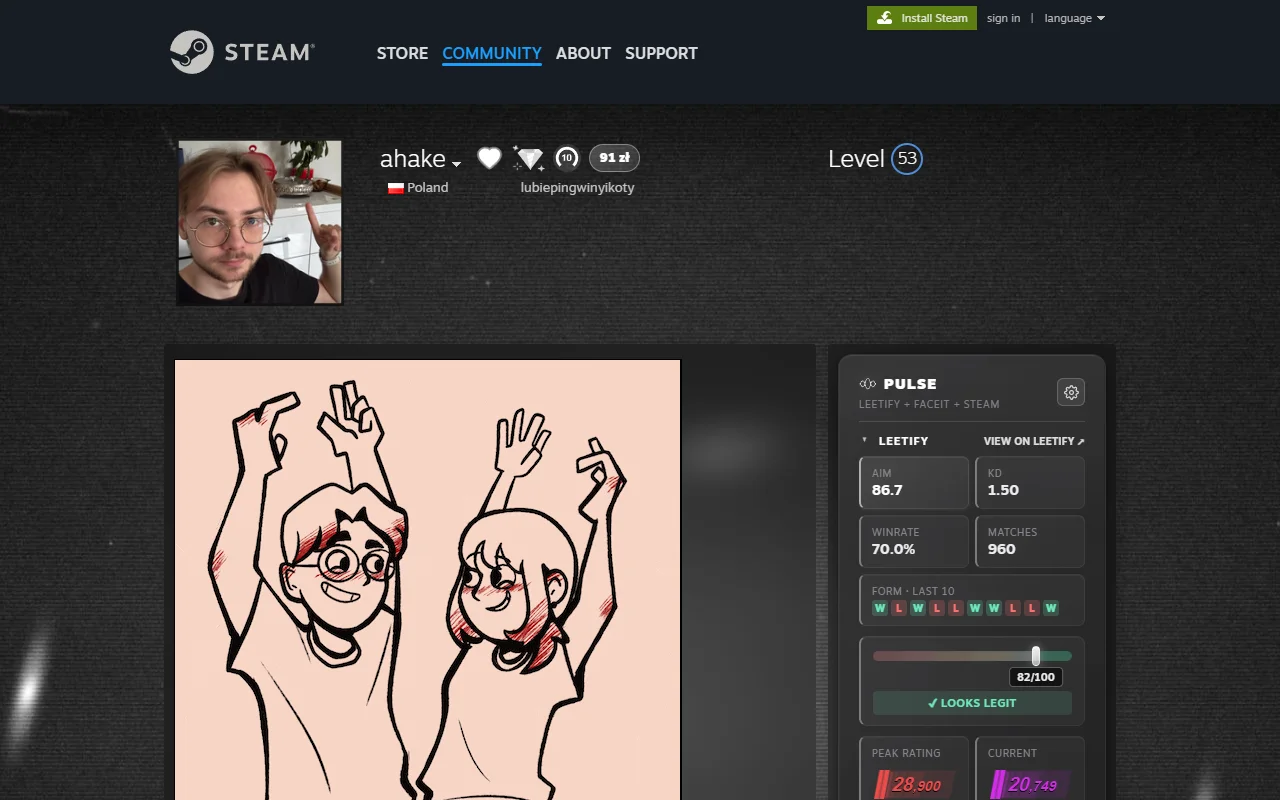
Using a plain desktop browser instead? The same extension installs in two clicks from the Chrome Web Store listing: Add to Chrome, then Add extension. That covers Chrome, Edge, Brave and Opera. On Firefox the store page will not install anything. Take the Firefox Add-ons listing instead. The steps above stay Chrome's, because the Steam client's browser is Chromium and only takes Chrome extensions.
If the panel does not show up
- Refresh the tab. The panel is injected when a profile page loads, so pages opened before the install stay bare until reloaded.
- Check the page. The panel lives on profile pages, steamcommunity.com/profiles/… or /id/…, not on the store or the friends list.
- Check the extension is really there. In a normal browser, open chrome://extensions. In the Steam client, use the tab trick to open the store listing again: if the install worked, the button now reads Remove from Chrome.
- Empty tiles are an answer too. A player with no recorded matches simply has no numbers, which is worth knowing before you read anything into it. More on that in how the stats work without an account.
Pulse is free and needs no account, and unless you turn on match tracking, nothing about you leaves the browser. See what the panel looks like, or come ask on Discord if something misbehaves, the link is in the footer.