
Since version 4.3.0 Pulse can follow your own matches. Once connected, every Premier and Competitive match you play is analyzed from its replay: kills, damage, headshots, Pulse Aim, time to damage, preaim and how your Premier rating moved. The results fill the Pulse section of your panel, your matches open as scoreboards on the Form strip, and Pulse lets you know when someone from one of your matches gets banned later. It works for players who never signed up anywhere, Leetify included.
Connecting takes one click when Steam already has your code, and a few more when it does not. The video shows it in the Steam client; below it, every step and every message you might see.
Connect in four steps
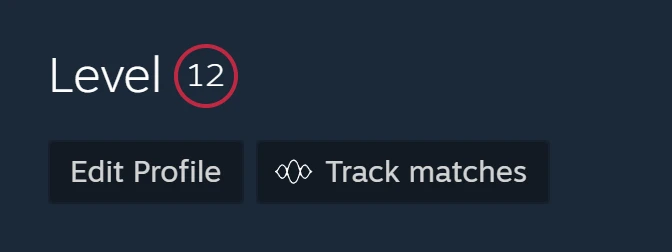
1. Click Track matches on your own profile
Open your own Steam profile while signed in to Steam, in the Steam client or in your browser. The Track matches button sits next to Edit Profile. The same link appears under the Form strip of the panel as Missing matches? Track matches. Other people's profiles never show it: only the owner of an account can connect it.
2. Read the window, click Allow and connect
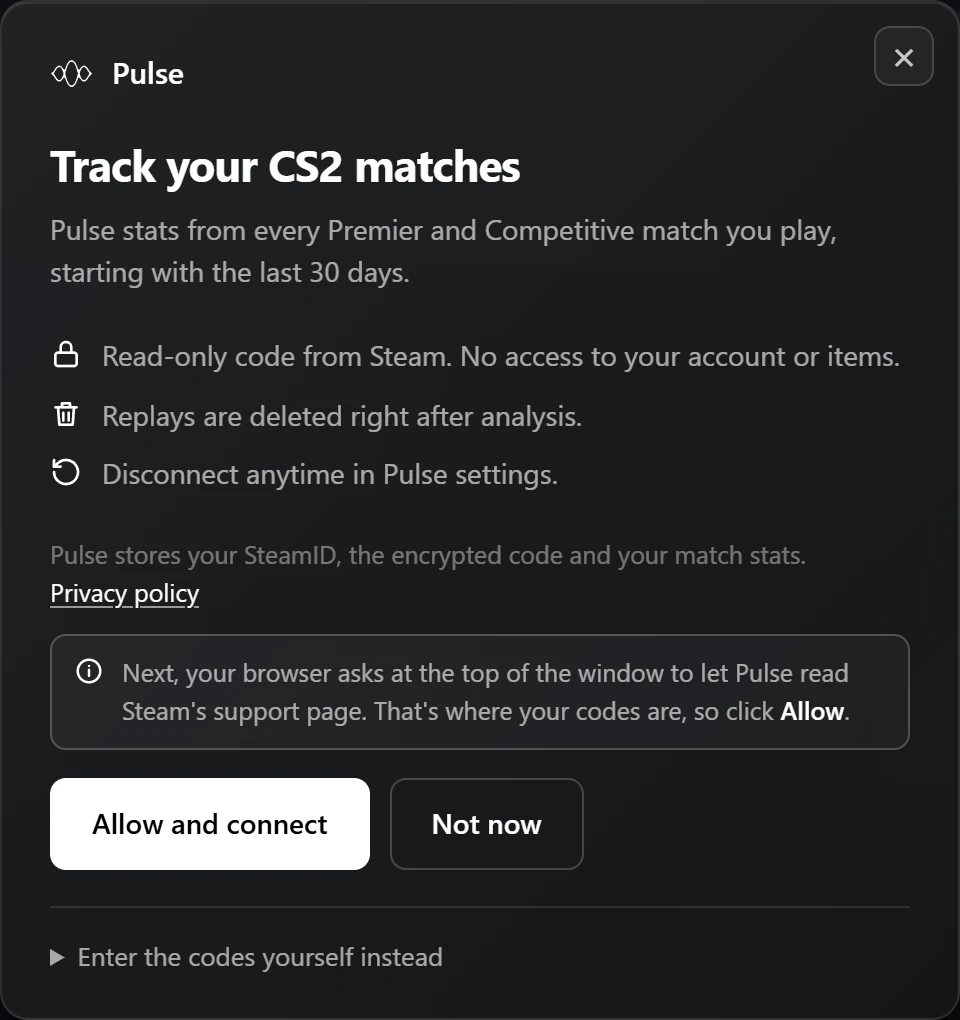
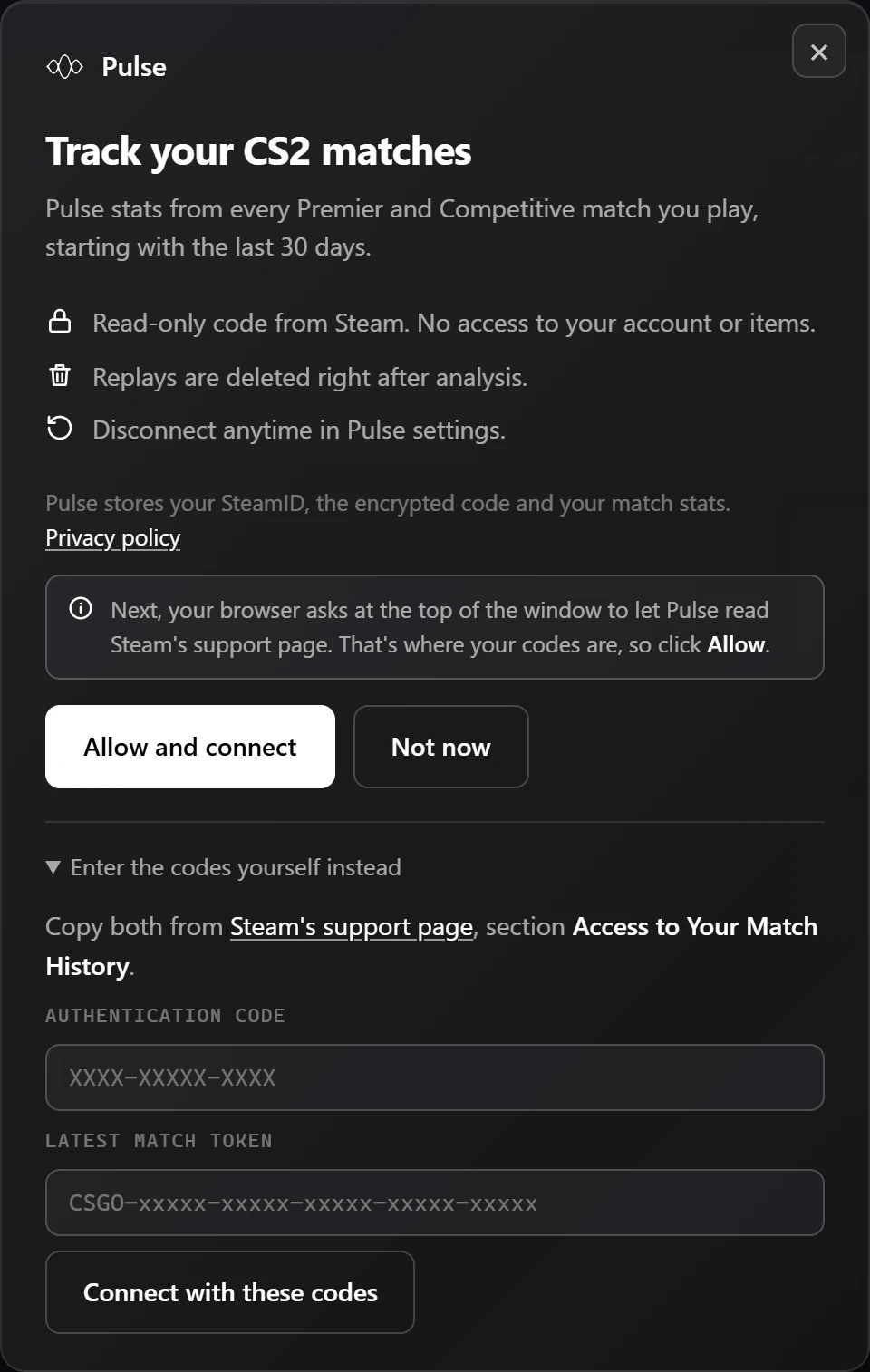
A window opens on top of the profile and says exactly what happens: Pulse uses a read-only code from Steam, with no access to your account or items, replays are deleted right after analysis, and you can disconnect at any time. Pulse stores your SteamID, the encrypted code and your match stats. The full details are in the privacy policy.
3. Let your browser open Steam's support page to Pulse
The first time, your browser shows its own prompt at the top of the window: Pulse asks to read and change data on help.steampowered.com. Click Allow. That page is where Steam keeps your match history codes, and Pulse reads only its Access to Your Match History section. The permission is optional, asked for only now, and given back automatically when you disconnect your last account.
4. Connected
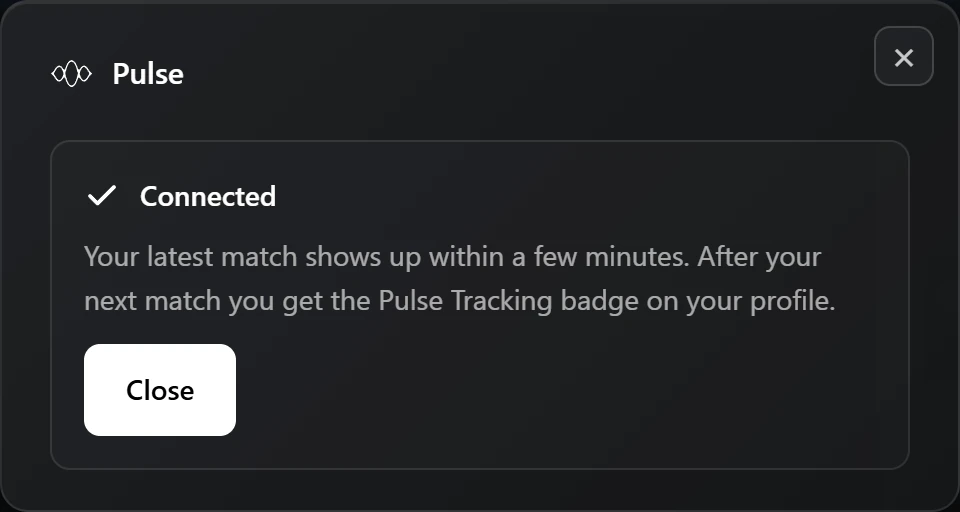
Pulse reads your codes from Steam, which takes a second, and checks them with Steam before saving anything. If the code is there, you are done. Your latest matches from the last 30 days show up within a few minutes.
No code yet? One click on Steam
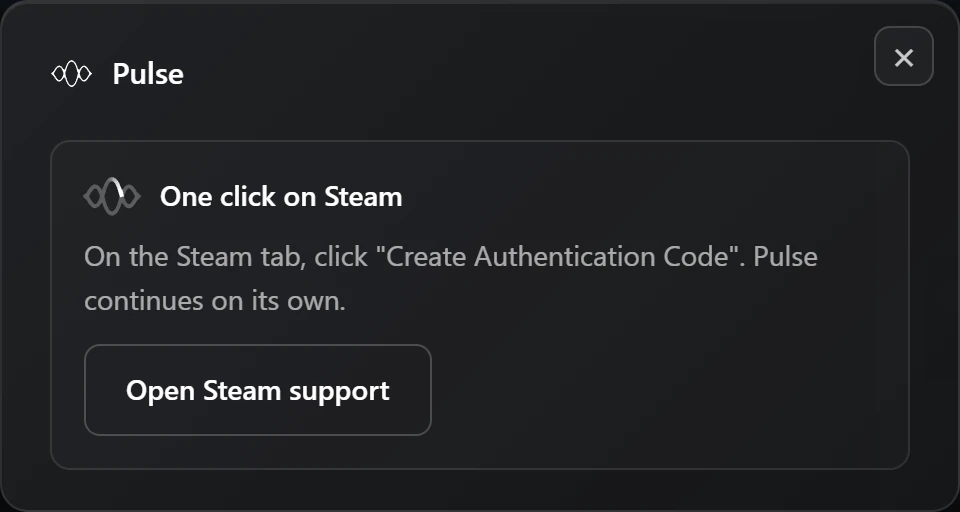
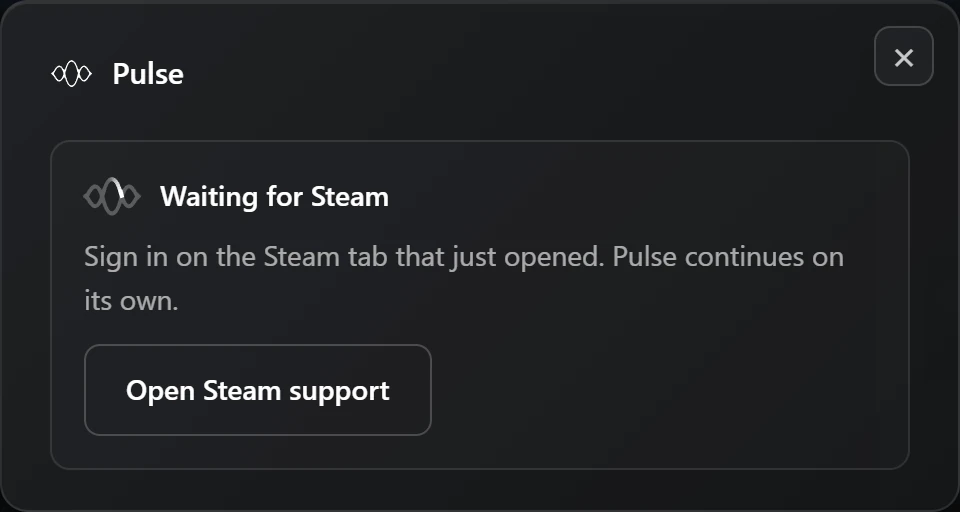
Many players have never created a match history code, and that is fine. Pulse opens Steam's support page for you and waits. On that page, in the Access to Your Match History section, click Create Authentication Code. Pulse checks the page every few seconds, picks the new code up on its own and brings you back to your profile. Leave the codes for Pick'Em alone; they are a different thing.
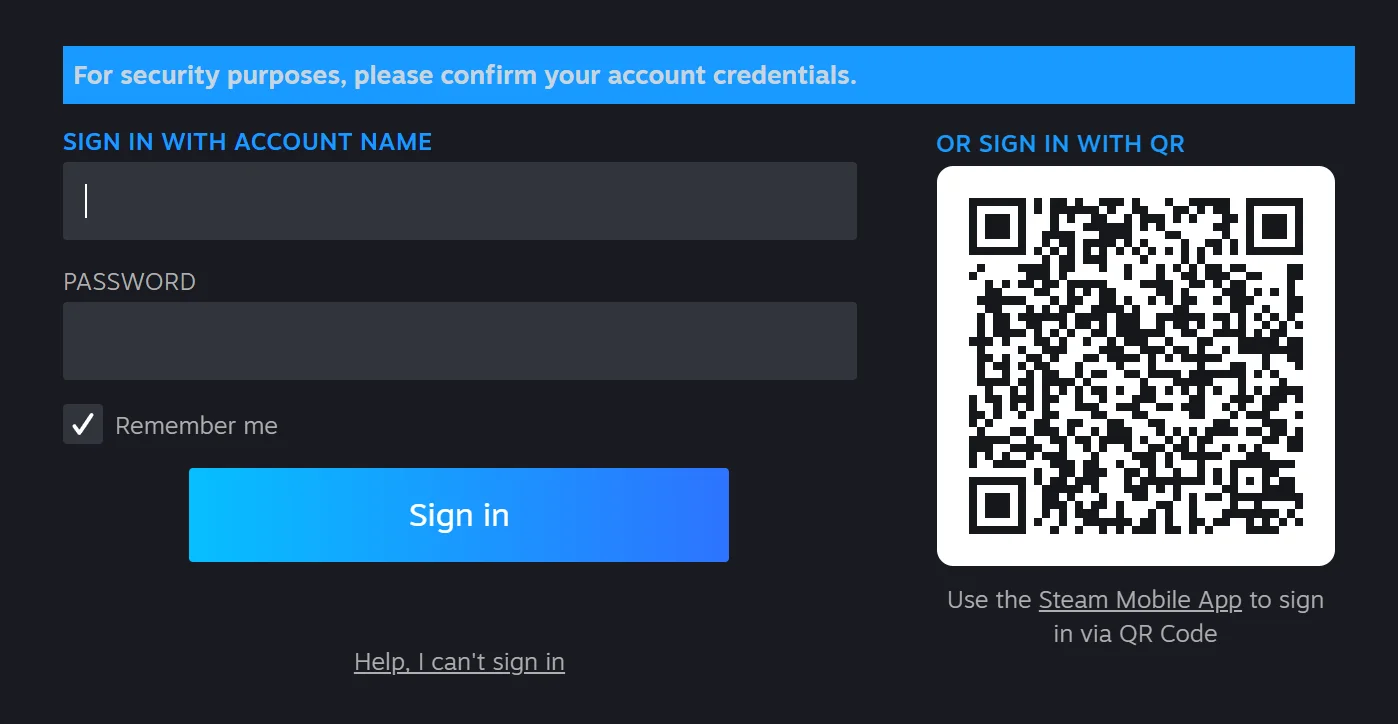
Steam may ask you to sign in again first. Its support site has its own sign-in, and for the page with your codes Steam often wants your password once more, with the message For security purposes, please confirm your account credentials. This is a Steam rule, not Pulse: it happens almost every time in the Steam client and now and then in a browser. Sign in with your password or the QR code in the Steam Mobile App. Pulse never sees either, it only waits for the page to show your code.
Other messages you might see
Every other message names the problem and the way out. All of them leave your account exactly as it was.
- No recent match yet. Steam has your code but no match to start from. Play one Premier or Competitive match, then click Try again.
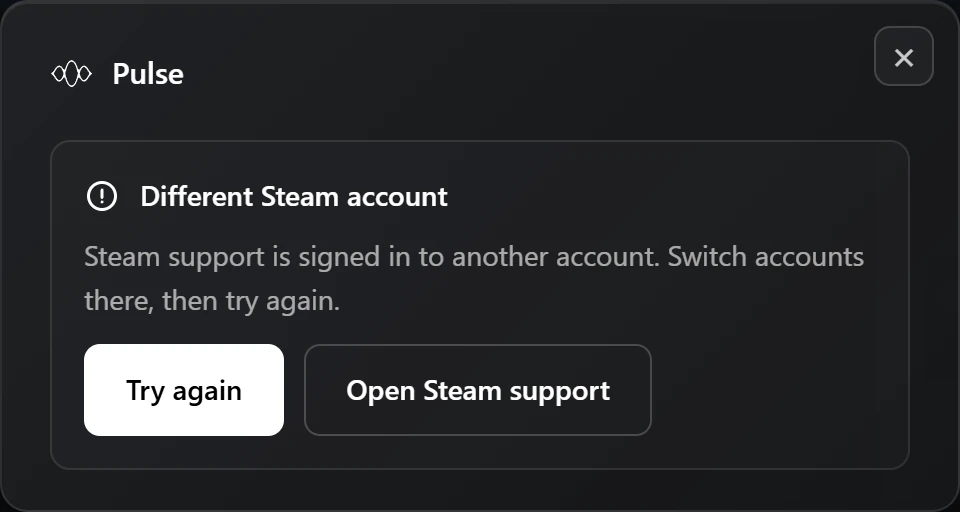
- Different Steam account. Steam's support site is signed in to another account than the profile you came from, which happens when you switch accounts. Switch there, then try again.
- Steam did not accept the code. Steam turned the code down, usually because it was revoked. Check it on Steam's support page and try again.
- Access not granted. The browser prompt from step 3 was closed or refused. Click Allow and connect again, or enter the codes yourself.
Enter the codes yourself
If you would rather not let Pulse read the support page at all, open Enter the codes yourself instead at the bottom of the window. Copy two things from the Access to Your Match History section of Steam's support page: the Authentication Code, which looks like XXXX-XXXXX-XXXX, and the token of your latest match, which starts with CSGO-. Paste them and click Connect with these codes. Pulse checks them with Steam exactly as in the automatic way, and this way needs no browser permission. The trade-off comes later: if tracking pauses after a month without a match, Pulse cannot fetch a fresh token by itself, so you reconnect by hand.
Steam client, Firefox and several browsers
- In the Steam client the support page opens in a new Steam window instead of a tab, and Steam almost always asks for your password there. Once you are signed in, Create Authentication Code works the same.
- In Firefox the Pulse window opens as a small separate window, because Steam's site does not let Firefox show extension pages on top of it. Firefox adds its own question about sharing authentication info, since the code counts as that, and it keeps each site's sign-in apart, so it may ask you to sign in to Steam support even though Steam Community knows you.
- Pulse in more than one place, say the Steam client and Chrome, means one click in each: every browser keeps its own copy of Pulse. They then stay connected side by side, and connecting in one does not sign the other out.
After you connect
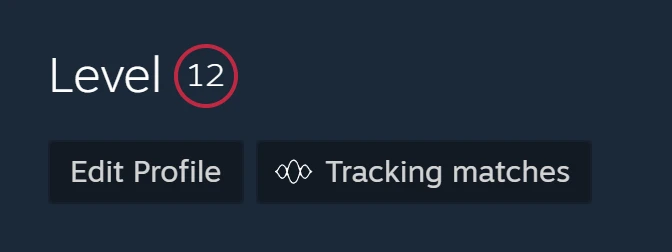
The button on your profile now says Tracking matches, and clicking it opens the Pulse settings. After the first match you play from now on, the Pulse Tracking badge appears next to your nickname for everyone with Pulse, and your matches fill the Pulse section of your panel. Pulse checks for new matches by itself; there is nothing to click after a game.
Two other states can show on the same button, and both explain themselves when you hover them:
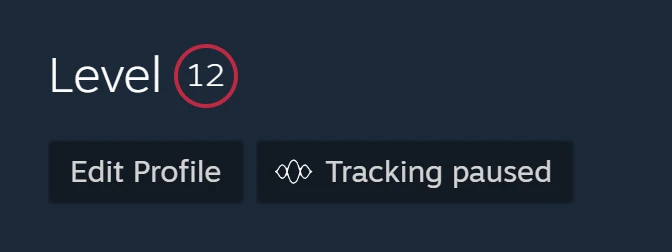
- Tracking paused. Your last known match is older than a month, and Steam only continues from a recent one. Play one Premier or Competitive match: Pulse picks up the new code by itself within a few hours, or right away when you click the button.
- Reconnect matches. Steam no longer accepts your code, because it was revoked or replaced on Steam's support page. Click the button and connect again; with a new code on the page it is one click.
Disconnect and delete your data
Open the Pulse settings, either with the gear in the panel or by clicking Tracking matches, and go to Match history. Disconnect and delete data removes the connection and your stats from Pulse in every browser at once. The rows of the other nine players in your matches stay, because they are their data, not yours. The code itself stays on Steam: to revoke it, use Steam's support page, but know that this disconnects every site using the code, Leetify included. What Pulse keeps and for how long is in the privacy policy, and everything else new in 4.3 is on what is new.