
The value badge next to a nickname answers one question: roughly what is this account carrying. Useful, but it is a single number, and a single number tells you nothing about which items are carrying it. The inventory page is where that gets answered.

Open the inventory, switch to the CS2 tab
Go to any Steam inventory, yours is steamcommunity.com/my/inventory, and pick the
Counter-Strike 2 tab. The panel only builds itself there, because that is the
only tab whose items have market prices worth summing. Give it a second on a big inventory:
it fetches the item list, then prices it.
What the column tells you
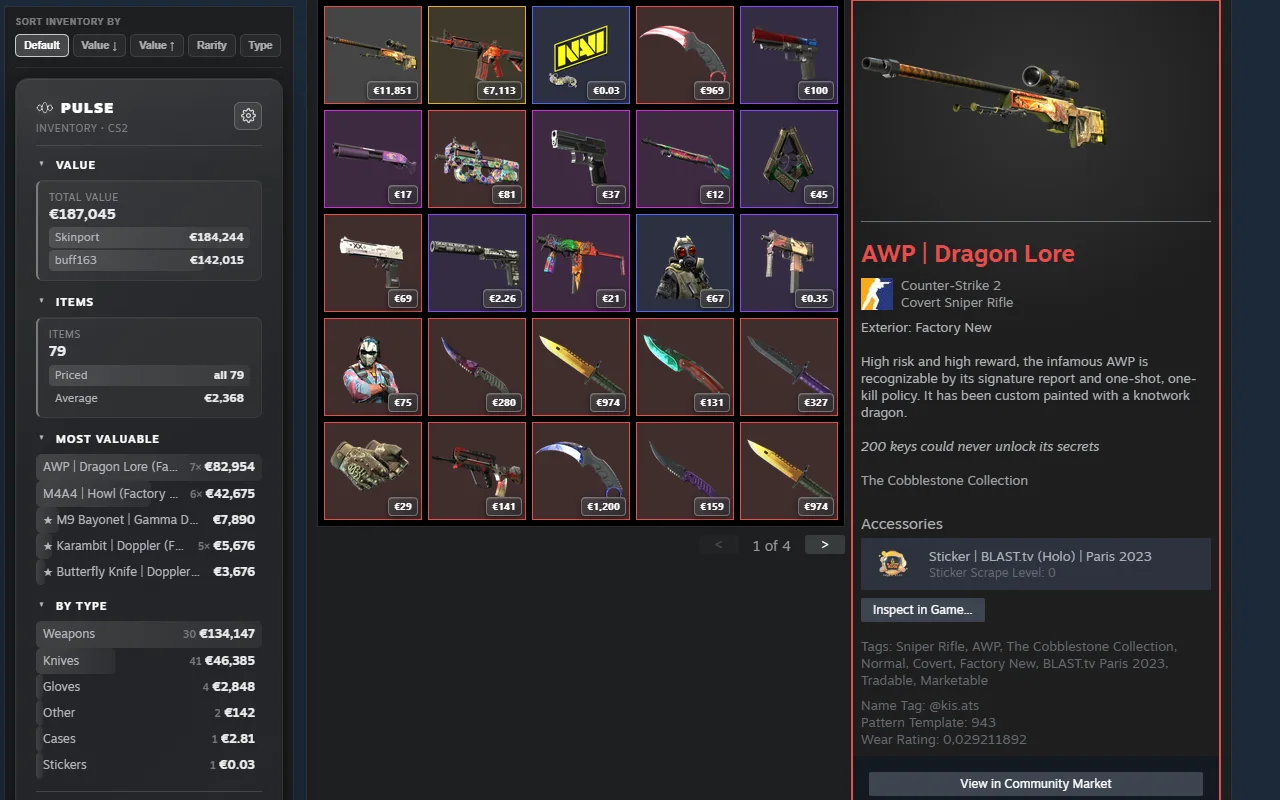
- Total value. Every item priced with the best price available for it, added up. This is the number the badge shows.
- The Skinport and buff163 rows. Read these carefully, they are not two competing totals. Each row is the sum of the items that source could price, so the smaller one usually just means that source knows fewer of your items.
- Items, priced, average. How many items are in there, how many got a price at all, and the total divided by those priced. The average is the honest way to spot an inventory that is one expensive knife plus three hundred graffiti.
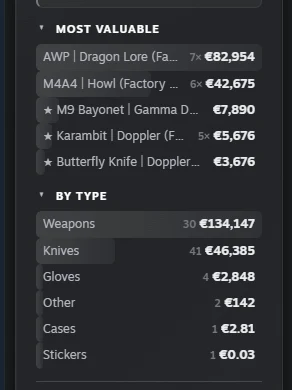
- Most valuable. Five entries, grouped by name, so seven copies of the same rifle are one row with a multiplier instead of seven rows.
- By type. Weapons, knives, gloves, cases, stickers and the rest, each with a count and a subtotal. This is where you see that the knives quietly outweigh everything else.
Two sources, and why that matters
Skinport is the base and its price always wins. buff163 exists to fill the holes, and the holes are big: measured across three real inventories, Skinport alone put a price on 40 to 71 percent of the items, and with buff163 behind it that went up to 46 to 86 percent. An item nobody has listed anywhere stays unpriced rather than getting a made-up number, which is why the priced count is displayed next to the total instead of being hidden. The price catalogue itself is rebuilt several times a day, so a weekend spike shows up the same weekend.
A price on every tile
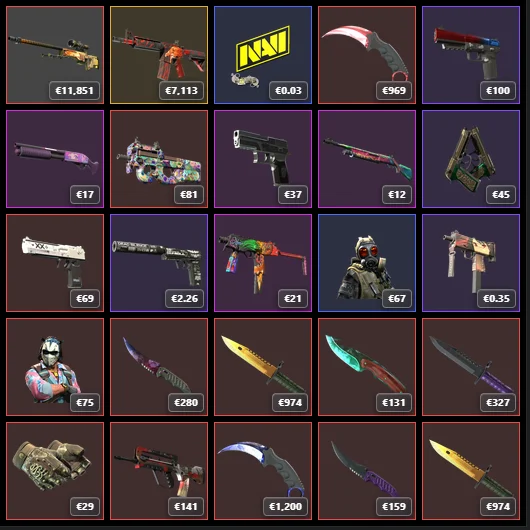
Each tile in the grid gets its own price in the corner, so the expensive corner of an inventory is visible without clicking anything. Doppler knives are the interesting case: two phases share one market name and can differ by hundreds, so the phase is resolved from the item's icon, not its name. A Sapphire and a Phase 2 with identical names get different prices, which is the only way that number can be right.
Sorting the whole thing, not just the page
Steam paginates an inventory, which makes "what is my most expensive item" surprisingly hard to answer. The sort bar above the grid reorders the entire inventory by value up, value down, rarity or type, and Default puts Steam's own order back. Nothing is saved on Steam's side, it is your view of the page and it goes away on refresh.
One more shortcut worth knowing: click any entry under Most valuable and the grid turns to the page that item is on and lights it up. On a four-page inventory that saves the part where you scroll looking for a knife you already know you own.
Someone else's inventory
The same panel builds on anyone's inventory, as long as it is public: open
steamcommunity.com/id/<name>/inventory and switch to the CS2 tab. A private
inventory gives nothing, and that is Steam's setting, not something an extension can talk its
way around. Nothing about you is sent anywhere to make this work, and there is no trade link
involved at any point.
What the number is, and is not
It is an estimate built from market listings, not an offer, and no automated valuation survives contact with a buyer. What each price actually represents, why two sites quote two different numbers for the same skin, what "unpriced" means and how the currency conversion works are all covered in the longer guide: how much is my CS2 inventory worth.
The panel arrived in Pulse 4.2.2 and needs no setup: install it, open an inventory, the column is there. If you have not got it yet, installing takes about a minute.