
Pulse draws one panel on every Steam profile, and out of the box it is monochrome: white text, thin outlines, no colour but the Premier bands and the trust bar. That is a deliberate default, not the only option. Since version 4.2.5 the settings page is built around a full-size example profile with the panel on it, so every choice below is something you see before you commit to it, not something you check by opening a profile afterwards.
Where the settings are
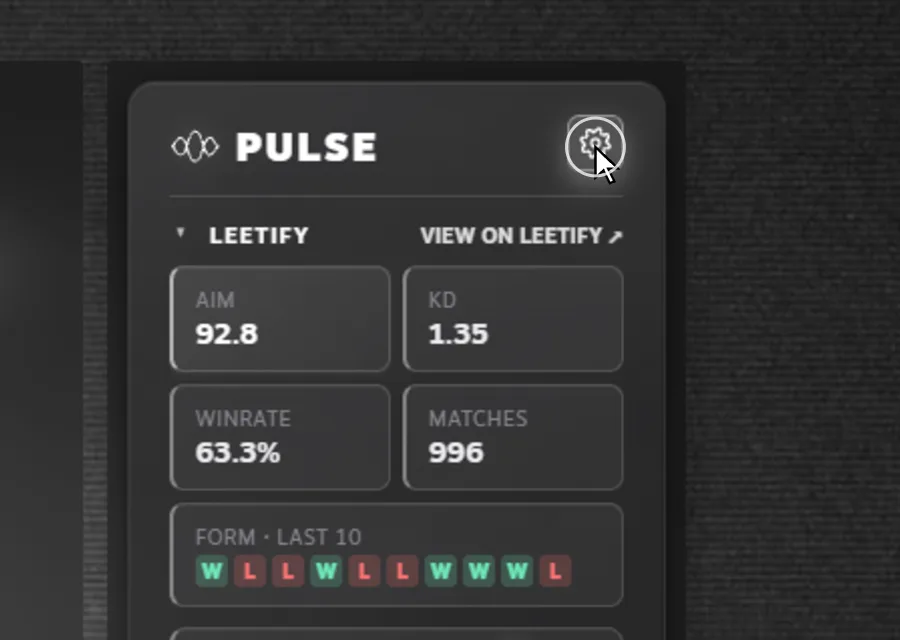
Click the gear in the top right corner of the panel. The same page is reachable from your browser's extension list, but the gear is faster and works inside the Steam client too. The page has a top bar with a link to every section, and the example profile on the left scrolls with you, so the panel stays in view while you work through the column on the right.
Panel accent
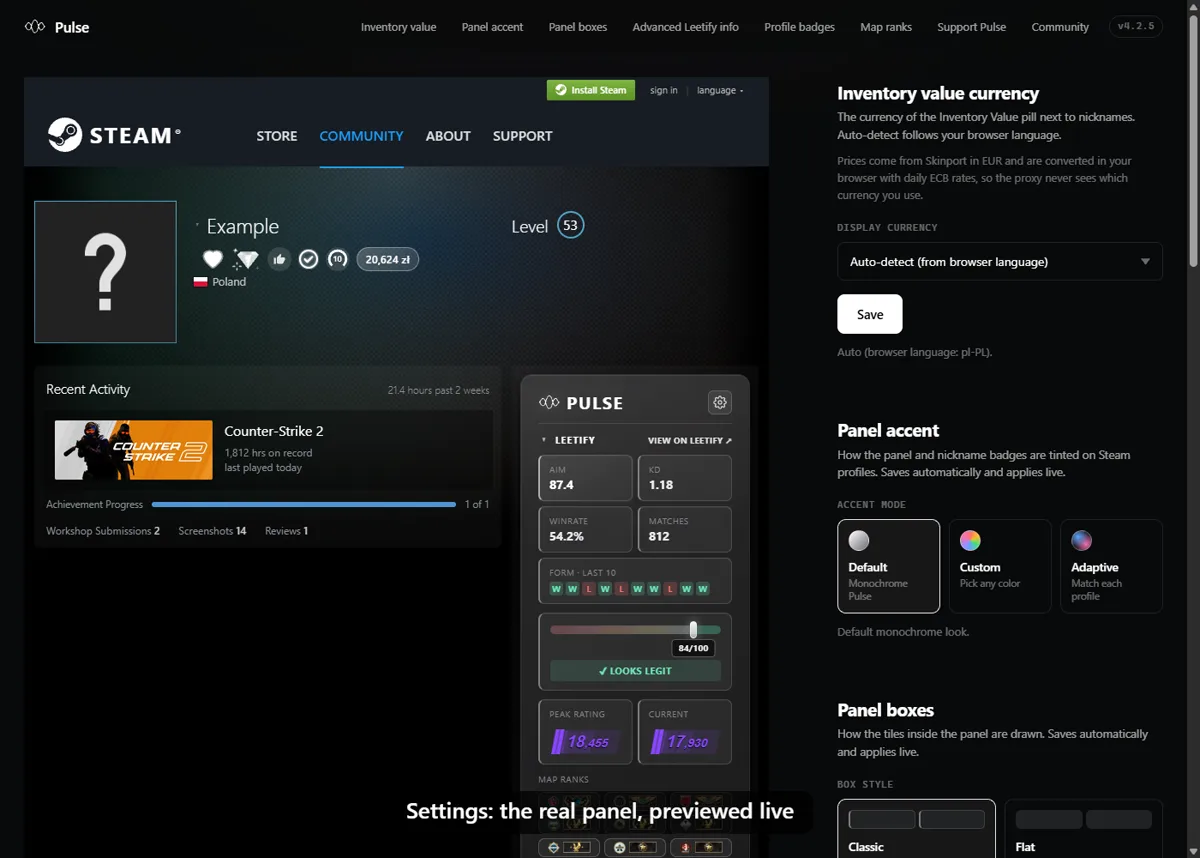
The accent is the colour the panel's edges, the section labels, the badges beside the nickname and the settings gear are tinted with. Three modes:
- Default is the monochrome Pulse look, white on dark.
- Custom opens a row of eight swatches and a colour picker for anything else, with the hex code beside it. The panel in the preview recolours as you click.
- Adaptive reads a colour from the profile's own artwork, the avatar and the background, so the panel matches the profile it sits on and looks different on every page. The example profile has no artwork to read, so the preview picks a random colour to show the idea.
Panel boxes: Classic, Flat, Outline, Glow
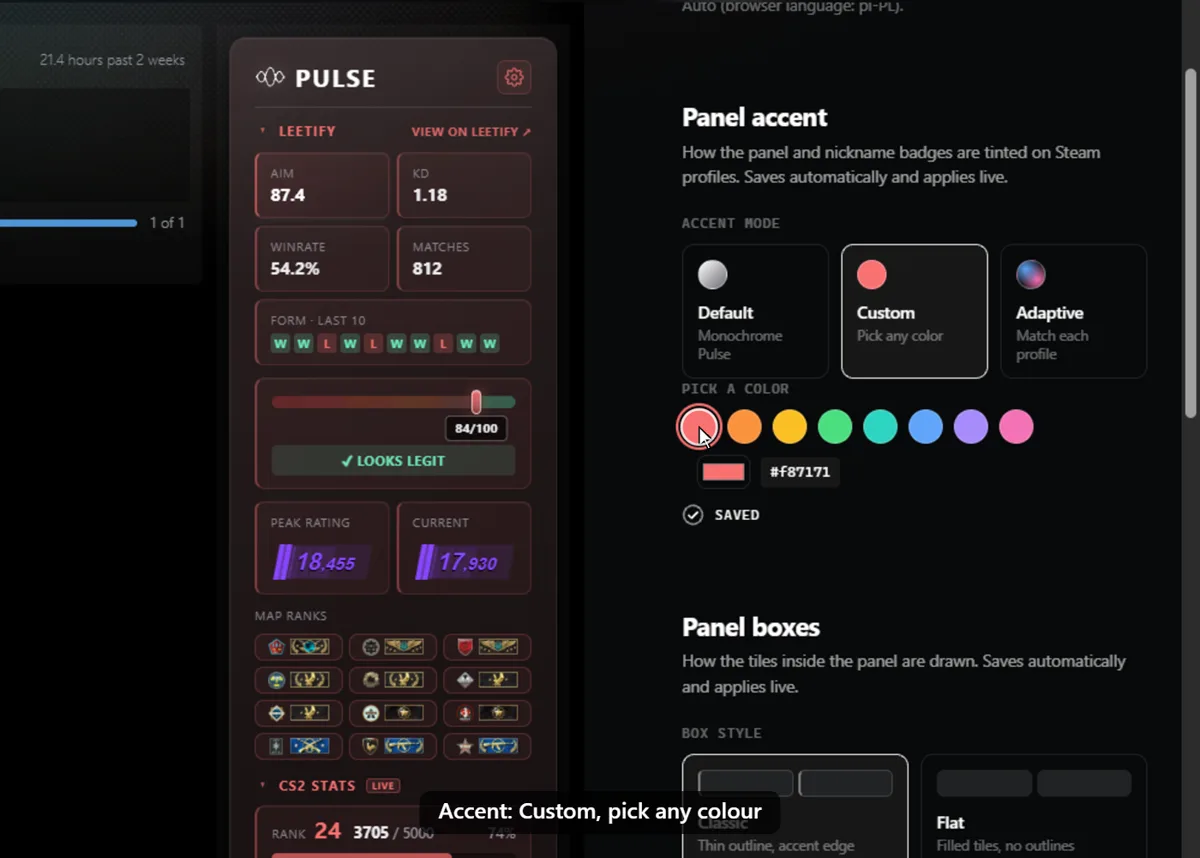
New in 4.2.5, this decides how the tiles inside the panel are drawn. All four follow the accent.
- Classic keeps the thin outline with a stronger accent edge on the left of each tile. This is the default and the look Pulse has always had, with one fix: the rank, friend code, commendation and trust boxes now follow the accent like the stat tiles do, instead of keeping grey edges.
- Flat fills the tiles and drops the outlines, for a calmer, blockier panel.
- Outline is lines only, see-through, the lightest of the four.
- Glow puts dark tiles under a soft accent glow, and spaces them a little further apart so the glows do not touch.
Switching is animated, on the preview and on any Steam profile you have open, so you can flip between them on a real page and settle on one.
Advanced Leetify info
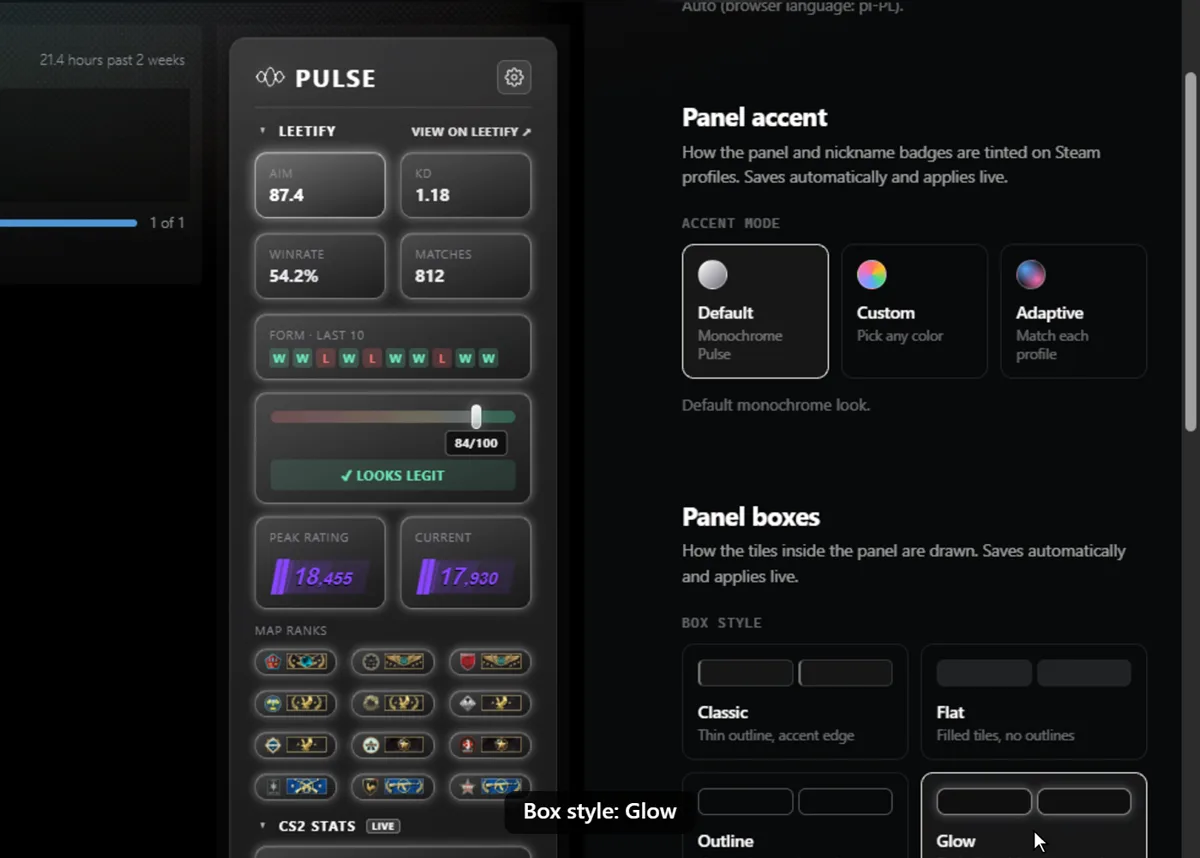
Off by default. On adds two tiles to the Leetify section: TTD, the time from spotting an enemy to damaging them, and preaim, how many degrees the crosshair sits off target before a duel starts. Both already feed the trust check, so turning them on changes nothing in the verdict, it only puts the two numbers on the panel. Click the Off or On card to switch.
Badges next to the nickname
Pulse puts up to eight small marks beside a nickname: the supporter heart, the server booster gem, the reviewer thumb, Pulse Staff, Pulse Contributor, the verified pro star, the Faceit level and the inventory value pill. Each has its own switch. Turn off the ones you do not care about and the nickname row gets shorter on every profile; the preview shows the row shrink as you go.
Map ranks
Competitive map ranks come from Leetify and a player who has played everything can have a lot of them. The limit decides how many the panel shows: 9, 12, 15 or all. They are sorted best first, so a lower limit keeps the highest ranks and drops the rest.
Inventory value currency
The value pill beside the nickname is priced by Skinport in euro and converted in your browser with daily European Central Bank rates. Auto-detect follows your browser language, or pick a currency from the list. This is the one setting with a Save button, because the pill is drawn once per page load. The conversion happens on your side, so the proxy that serves the price catalogue never learns which currency you use. More on the number itself in what the value badge means.
Supporter badge
The form at the bottom of the page is where the heart beside a nickname comes from. Paste a Steam link or a nickname and the form shows that profile before you continue: avatar, level, country, the heart in the tier you picked and the badges the profile already has. It is the same preview as on cspulse.pl/supporter; what a supporter gets is explained there.
Where it all lives
Settings are kept in the browser's extension storage and follow your browser profile wherever it syncs extension data, so a second machine signed into the same browser account gets the same panel. Nothing here is sent to Pulse: no account, no login, and the settings page itself talks to Steam only to draw the supporter preview. For the full list of what changed in 4.2.5, see what is new.