
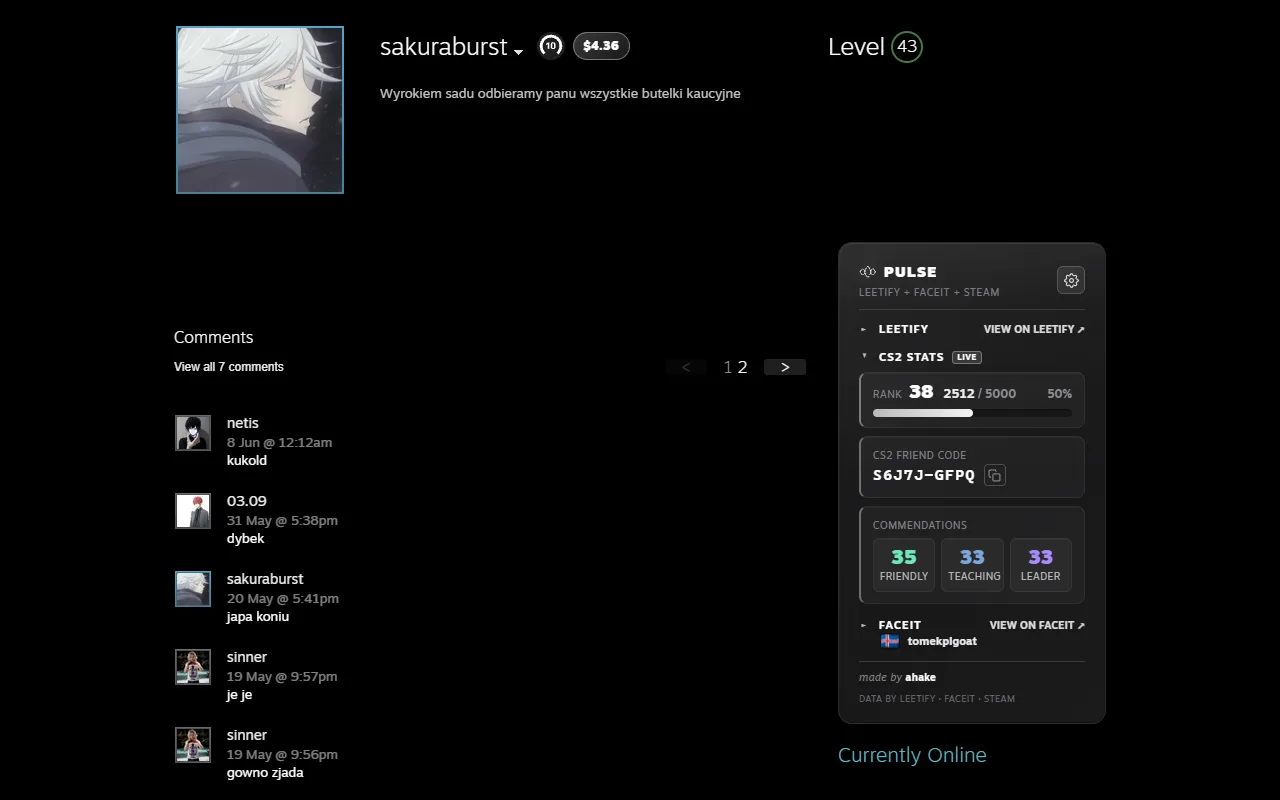
Install Pulse, open the Steam profile you are interested in, and scroll down to the panel the extension adds under the profile summary. The friend code sits in the CS2 in-game section, directly below Private Rank and the XP progress bar, with a small copy icon next to it. One click puts it on your clipboard, ready to paste into the Add a Friend box in CS2. Steam never prints the code on a profile page, which is the whole reason this is not obvious.
What a friend code actually is
A CS2 friend code is a short string, something like SUCVS-FADA, calculated from
the account id that every Steam account has. It is a compact way of writing down which
account you mean, and that is all it is. It is not a password and not a secret.
Knowing someone's friend code does not let anyone sign in, read private data, or touch the
account in any way. It only lets you send a friend request inside CS2 without guessing which
of the twelve identical nicknames is the right one.
Because the code comes out of the account id, it can be worked out from the profile you are already looking at. There is no database to query and nothing to ask the person for.
Step by step
- Install Pulse in Chrome or Firefox
- Open the Steam profile in your browser
- Scroll to the Pulse panel below the profile summary
- Find the CS2 section: Private Rank, XP, then CS2 Friend Code
- Click the copy icon, then paste the code into CS2
Friend code, SteamID64 and the profile address
One account, three ways of writing it down, and they are not interchangeable:
- Friend code, something like
SUCVS-FADA. This is the one CS2's Add a Friend box accepts. It comes out of the account id by calculation, so it can be worked out rather than looked up anywhere. - SteamID64, a seventeen-digit number. This is what tools use internally, because it is the one identifier that never changes.
- Profile address, either
/profiles/followed by the SteamID64, or/id/followed by a custom name the owner picked. The custom form is the one to be careful with: it can be given up and claimed by somebody else, so an address you remember from a year ago need not be the player you remember.
That last point is exactly why Pulse resolves a profile to its numeric id before it looks anything up. The code you copy out of the panel belongs to the account whose profile you are standing on, not to whoever happens to hold a recycled address.
If the section comes back empty
A private profile is the usual reason. If someone has hidden their game details, the in-game section has nothing to read and says so instead of guessing. Public profiles are the ones that work, and there is nothing to fix on your side.
Get Pulse
Pulse is free, needs no account, no login and no API key, and asks for a single permission
(storage). Install it for
Chrome and Chromium browsers
or for
Firefox.
What it reads and what it never stores is written out in the
privacy policy.
Common questions
Is a CS2 friend code sensitive? No. It is not a password and not a secret. Knowing someone's code lets you send them a friend request in CS2, and nothing else: it cannot be used to sign in, read private data, or touch the account.
Does a CS2 friend code ever change? No. It is calculated from the account id, and that id stays with the account for its whole life, so the code you note down today will still be right later. Renaming the account or changing its profile address does not affect it.
Why does Steam not show the friend code on the profile? Steam simply does not print it anywhere on the web profile, which is the entire reason this is hard to find. The code is a CS2 concept, and the profile page belongs to Steam rather than to the game.
Can I get someone's CS2 friend code without installing anything? Not from Pulse. The code is drawn into the Steam page by the extension, so the extension has to be there. A private profile stays private either way.